This guide is for founders, owners, operations leaders, and revenue teams at small and mid-size US businesses that have outgrown fragmented systems, spreadsheets, or a Salesforce setup that's become too complex to manage.
Most teams treat migration as "moving data from A to B." In practice, it's a redesign project. You're deciding what to keep, what to rebuild, what to archive, and who owns each system going forward. This article walks through the decisions, the mechanics, and the places teams get stuck.
Key Takeaways
- Decide what to keep, clean, redesign, archive, or replace before copying a single field
- Records (contacts, deals) transfer differently than assets (workflows, reports, permissions)
- Field mapping, duplicate prevention, backups, and test imports determine whether cutover succeeds
- HubSpot fits teams that want a connected CRM; validate complex requirements before you commit
What Salesforce-to-HubSpot Migration Is and Why It Is Used
Migration means permanently moving your CRM operations to HubSpot. That's different from connecting Salesforce and HubSpot through an integration while both systems stay active.
HubSpot separates these two paths clearly: a one-time Smart Transfer for full migration, and an ongoing Salesforce integration for businesses that plan to keep both platforms. Running both tools at once is not a hybrid strategy. HubSpot warns that combining Smart Transfer with its Salesforce integration creates duplicate records, because each path uses different identifiers for the same data.
Why Teams Make the Switch
Common drivers include:
- Consolidating marketing and sales data that currently lives in separate systems
- Reducing dependence on spreadsheets patched together to cover Salesforce gaps
- Simplifying administration for teams without a dedicated Salesforce admin
- Giving sales, marketing, and support one connected view of each customer
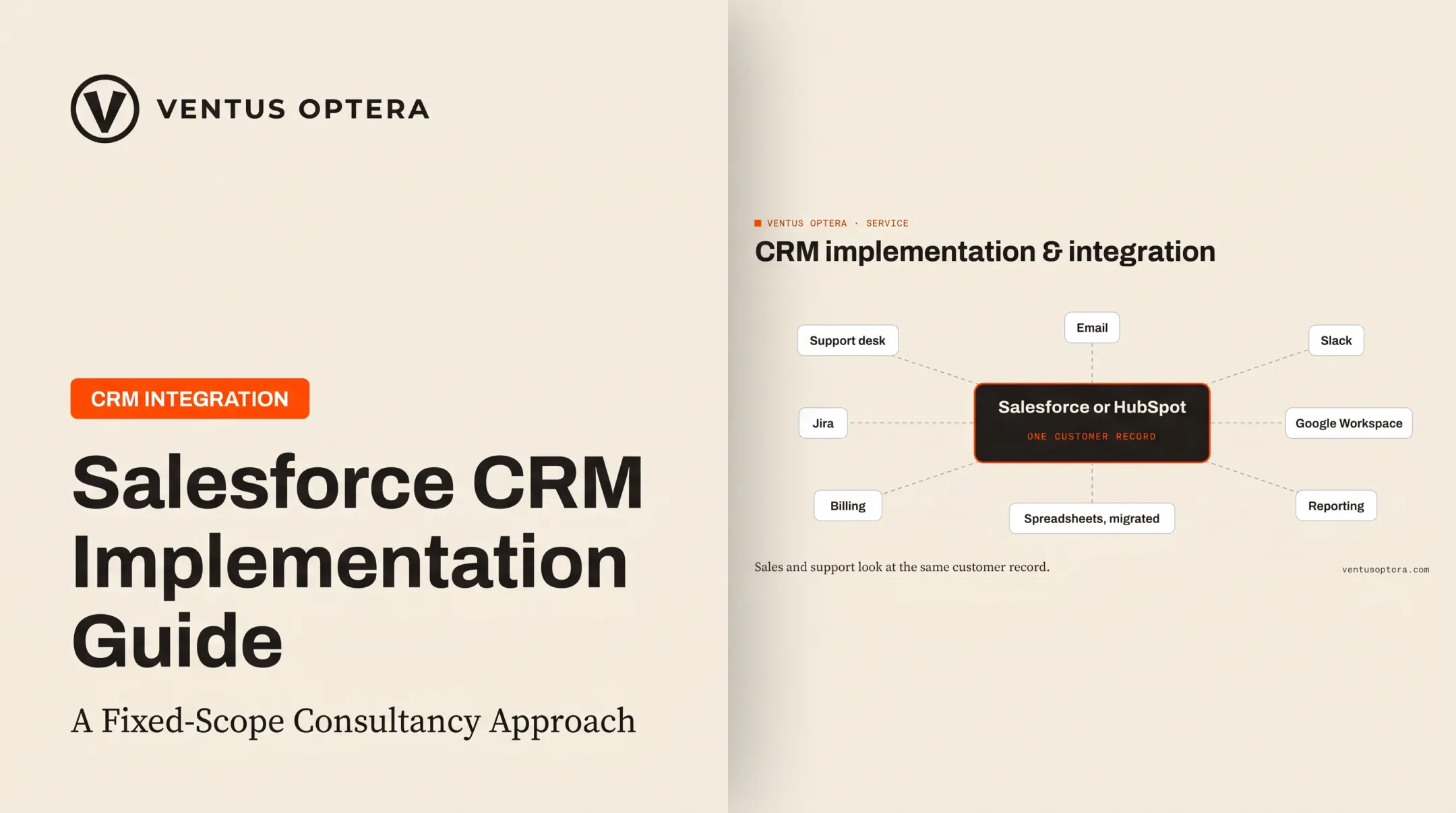
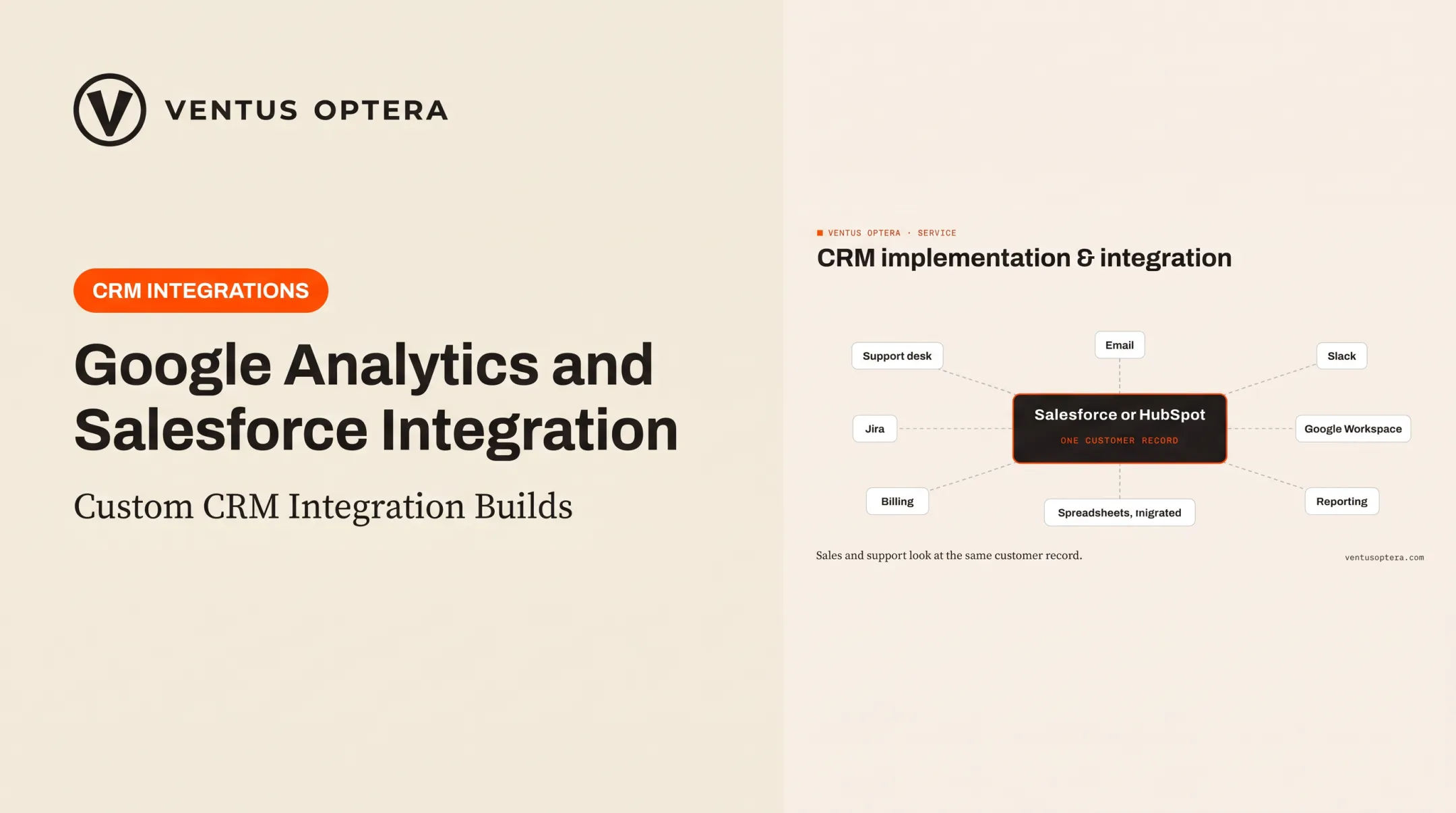
The same fragmentation shows up when Salesforce sits beside other tools. Our work with clients running Zendesk for support, Mailchimp for marketing, and a spreadsheet for finance makes the pattern plain: someone types the same customer into three systems, and two copies go stale within a month.
How the Data Models Compare
HubSpot documents specific object equivalents between the platforms:
| Salesforce Object | HubSpot Equivalent |
|---|---|
| Account | Company |
| Opportunity | Deal |
| Lead | Contact |
| Contact | Contact |
| Case | Ticket |
This mapping tells you where a record belongs. It does not tell you whether every field, association, or automation tied to that record will move intact. HubSpot's Smart Transfer documentation lists several Salesforce field types, including encryptedstring, JunctionIdList, and calculated fields, as unsupported entirely.
Decision checkpoint:
- Migrate if you are ready to retire Salesforce and want one connected system
- Integrate temporarily if Salesforce stays in use for another team or function
- Delay if data quality is unknown, nobody agrees on the source of truth, or the only driver is an upcoming renewal deadline
How the Migration Works
A migration moves through distinct phases, not a single export-import action.
Discovery and Data Audit
Start with stakeholder interviews and a full inventory: every Salesforce object, integration, customization, report, automation, permission set, and the intended system of record going forward.
Then audit the data itself. Look for:
- Duplicate leads and contacts
- Incomplete or outdated property values
- Inconsistent picklist entries
- Contacts with no associated company or deal
- Inactive records that should be archived, not migrated
Skipping this step is the single most common cause of a messy HubSpot instance six months post-launch.
Mapping, Testing, and Cutover
Build a mapping plan covering standard objects, custom objects, fields, record owners, lifecycle stages, deal stages, and unique identifiers. A simple example:
| Salesforce Field | HubSpot Property |
|---|---|
| Account.Industry | Company - Industry |
| Opportunity.StageName | Deal Stage |
| Lead.Status | Lifecycle Stage |
| Contact.OwnerId | HubSpot Owner |
Run a test migration before touching production data. Check record counts, spot-check property values, verify contact-company and deal associations, and confirm workflow triggers fire correctly.
HubSpot's import checklist treats this step as mandatory and flags engagement data and associations as frequent failure points.
Cutover itself involves:
- Final backup of the Salesforce instance
- Team communication about the go-live date and what changes
- Read-only Salesforce access during the transition window, if needed
- Delta sync to catch records created after the test migration
- User training on the new HubSpot workflows
- Named issue ownership for the first two weeks post-launch

That post-launch window matters as much as the cutover itself. Ventus Optera runs Salesforce-to-HubSpot migrations beside live operations: field and stage mapping, duplicate merges, and a documented rollback path if something breaks mid-transfer.
Where the Migration Applies and What Affects It
Not every Salesforce feature has a HubSpot equivalent waiting on the other side.
What Can Transfer vs. What Must Be Rebuilt
Records generally import. Assets generally don't, at least not automatically.
Can be imported:
- Contacts, companies, leads, and opportunities/deals
- Activities and email templates
- Custom objects (with the Salesforce integration, on Enterprise-tier HubSpot)
Usually needs rebuilding:
- Salesforce Flows and Process Builder logic
- Reports, dashboards, and page layouts
- Queues, sequences, validation rules, and permission structures
HubSpot's own switching guidance tells Salesforce users to rebuild automation in HubSpot's workflow tool rather than expecting existing Flows to convert.
Factors That Change Scope
- Data volume and cleanliness — messier data means more pre-migration cleanup time
- Number of users — affects training load and permission redesign
- Integration count — each connected tool (Zendesk, Jira, Mailchimp, Slack) needs its own migration plan
- Reporting complexity — custom dashboards rarely transfer; most get rebuilt from scratch
- Custom objects — may require Enterprise-tier HubSpot and a separate sync configuration
For every item in your inventory, assign one label: migrate, rebuild, replace, archive, or retire. Don't assume a Salesforce feature has a direct HubSpot counterpart just because the two platforms look similar on the surface.

Common Issues and When Migration May Not Be Appropriate
A successful file import is not proof of a successful migration. Three misconceptions cause the most damage.
Misconception 1: Importing records recreates the CRM. It doesn't. Associations, permissions, and automation all need separate verification.
Misconception 2: Salesforce reports become HubSpot reports. They don't carry over. Reports and dashboards aren't part of HubSpot's documented transfer objects. They get rebuilt using HubSpot's reporting tools.
Misconception 3: A clean import proves everything works. Matching record counts don't mean associations, workflows, or integrations behave correctly.
Frequent Failure Points
- Duplicate Salesforce Leads and Contacts becoming duplicate HubSpot Contacts
- Broken contact-company or deal associations after import
- Unmapped custom fields silently dropped
- Missing historical activity (Einstein Activity Capture emails often don't land as standard HubSpot engagements)
- Conflicting record ownership between the two systems
- Automation that was never rebuilt, so triggers simply stop firing
When to Hold Off
Migration may be premature if:
- Salesforce custom objects or Apex code are mission-critical to daily operations
- Your team can't agree on which system should be the source of truth
- HubSpot lacks a capability your business genuinely needs
- The only reason you're migrating is an approaching renewal deadline
In these cases, a temporary integration, a lighter CRM, or even a custom-built system may serve the business better than a full migration. An independent CRM selection review that compares requirements and total cost before you commit often prevents a costly false start.

Conclusion
Salesforce-to-HubSpot migration combines data transfer, process redesign, asset rebuilding, integration planning, testing, and change management. Treating it as a simple export-import job is how teams end up with duplicate records and broken dashboards three months later.
The safer path starts before you move a single record:
- Clean and understand your source data first
- Design the target system deliberately
- Migrate only what still supports current operations
- Validate every business-critical workflow before cutover, not after
If you're weighing a Salesforce-to-HubSpot move and want an independent read on your current systems, Ventus Optera builds targeted software, CRM integrations, and automations around how your business actually operates, and you keep ownership of everything built. That conversation is most useful before you lock a migration timeline.
Frequently Asked Questions
Does HubSpot sync with Salesforce?
Yes, HubSpot connects and syncs with Salesforce when the integration, permissions, objects, and sync rules are properly configured. That ongoing sync is a different approach from a one-time migration, and the two shouldn't run together.
How do I migrate data from Salesforce to HubSpot?
Audit your data, back everything up, build a field and object mapping plan, then run a test import before touching production. Check associations and reconcile record counts after the live migration, and keep validating for several weeks post-launch.
How long does a Salesforce-to-HubSpot migration take?
Timing depends on data quality, custom objects, integration count, automation complexity, and how much historical data needs preserving. Anyone promising a fixed timeline without a discovery phase first is guessing.
Can Salesforce workflows and automations be migrated to HubSpot?
Not directly. Salesforce Flows, Process Builder logic, and similar automation generally need to be reviewed and rebuilt as HubSpot workflows, custom actions, or integrations rather than transferred as-is.
What Salesforce data can be migrated to HubSpot?
Contacts, companies, deals, activities, products, tickets, and certain custom objects can typically move over. The exact scope depends on your data structure, field types, and which HubSpot subscription tier you're on.
How do I validate HubSpot after migrating from Salesforce?
Reconcile record counts, check associations between contacts, companies, and deals, and review for duplicates. Test workflows and integrations, compare dashboard outputs against your old Salesforce reports, and monitor closely for several weeks after go-live.