Introduction
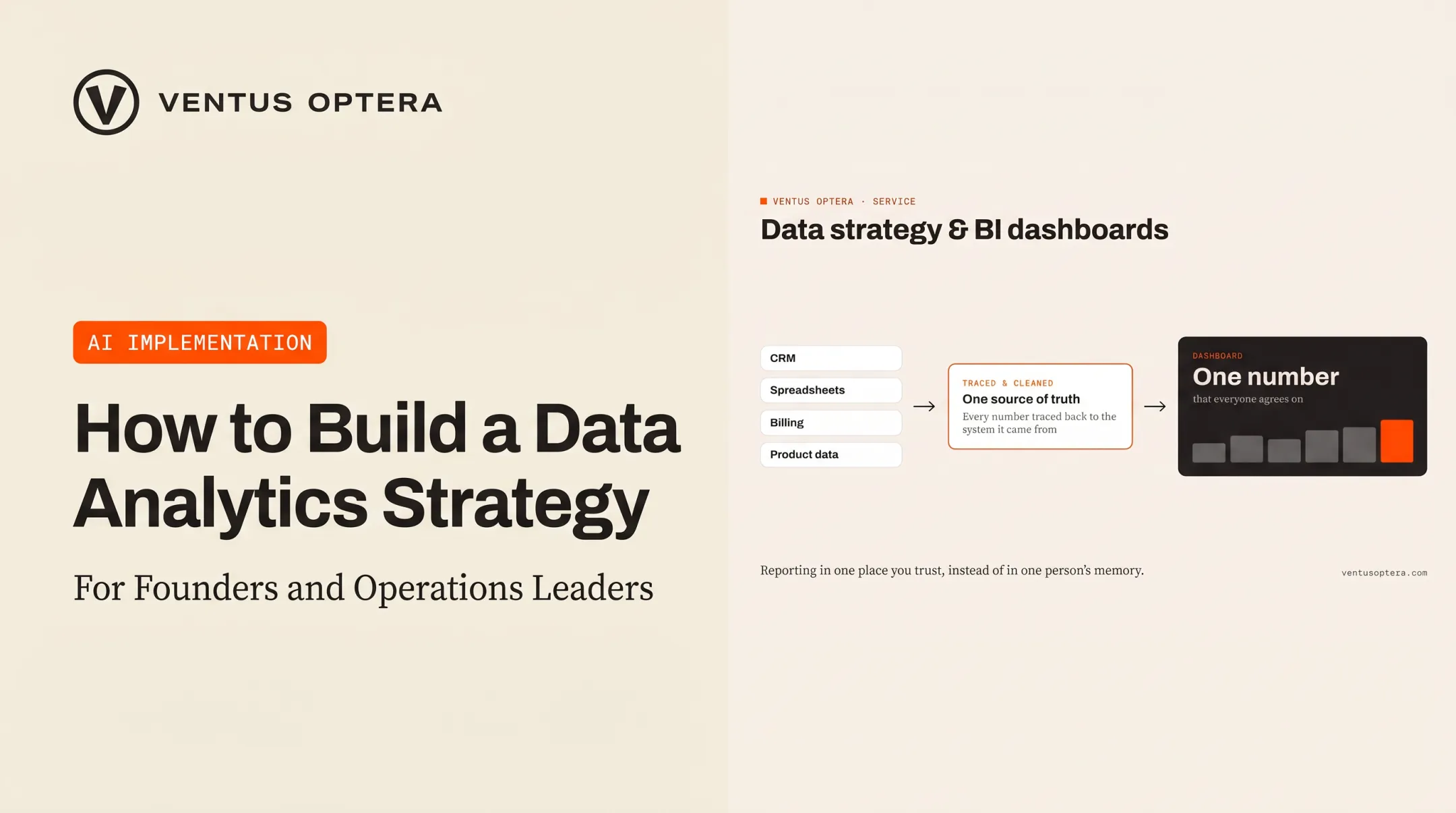
Sales teams pull one number from Salesforce. Finance pulls a different number from a spreadsheet. By Monday's meeting, nobody agrees on what the pipeline actually looks like.
This is the daily reality for a lot of Salesforce teams: critical reporting scattered across static reports, disconnected spreadsheets, and manually assembled slide decks that are outdated before anyone opens them.
A simple question can take an hour to answer when someone has to manually stitch numbers together from multiple systems.
Salesforce CRM Analytics dashboards exist to close that gap. Instead of a static snapshot, you get an interactive view that lets users filter, drill down, and investigate changes without waiting for someone else to rebuild the report.
This article covers what CRM Analytics actually is, how it differs from standard Salesforce dashboards, what belongs in a strong dashboard, and real use cases. You will also see how to plan one that your team will actually trust.
Key Takeaways
- CRM Analytics dashboards mix live charts, KPIs, tables, and filters from Salesforce and connected systems.
- Standard Salesforce dashboards still work fine for straightforward, single-object reporting.
- Use CRM Analytics when you need blended data, recurring executive questions, or trend analysis.
- A good dashboard starts with a business question and an owner, not a blank canvas.
- Access controls and row-level security need planning before launch, not after.
What Is Salesforce CRM Analytics?
Salesforce CRM Analytics is the platform's analytics layer for connecting, preparing, and visualizing business data, whether it lives inside Salesforce or comes from somewhere else entirely.
It's gone through a couple of name changes worth knowing. You'll still see them in older documentation and job postings: Salesforce renamed Einstein Analytics to Tableau CRM in October 2020, then launched it as CRM Analytics in 2022. Same underlying engine, different label.
A CRM Analytics dashboard isn't a static report screenshot. Users can filter, click into a chart to see connected widgets update, and drill from a summary number down to the individual opportunities or cases behind it.
How It Actually Compares to Standard Dashboards
Here's where people get confused: standard Salesforce dashboards also support filtering. The real differences show up in data handling and depth of exploration.
| Factor | Standard Reports & Dashboards | CRM Analytics |
|---|---|---|
| Data source | Pulls from Salesforce reports only | Works with Salesforce data plus external systems like ERPs |
| Interaction | Dashboard-level filters | Faceted selections that update connected widgets instantly |
| Customization | Report-based widgets | Prepared datasets, recipes, calculated fields |
| Best for | Quick operational lists, single-object summaries | Cross-object analysis, blended data, trend investigation |
When to Use Which
Standard reports still win for a quick list of open cases or a simple monthly summary. Don't overbuild.
CRM Analytics becomes worth the setup when you need to:
- Combine Salesforce data with support tickets or billing systems
- Answer a recurring executive question with blended data
- Drive a decision rather than just display a total
Core Components of a CRM Analytics Dashboard
A dashboard that tries to show everything ends up showing nothing useful. The strongest ones are built from a handful of deliberate components.
KPI Cards and Headline Metrics
These should reflect one specific business objective, not a wall of numbers nobody asked for. Pick two or three measures tied directly to the decision the dashboard supports, like open pipeline value or average case resolution time.
Charts and Visualizations
Match the chart to the question:
- Bar charts for comparing reps, regions, or product lines
- Line charts for trends over time
- Funnels for stage-to-stage conversion
- Donut charts for composition, like lead source mix
Tables and Record-Level Detail
A chart tells you something changed. A table lets a user click through to the actual opportunities, accounts, or cases behind the number, so they can act instead of just observing.
Filters and Faceted Interaction
Contextual filtering by date, owner, region, stage, or account lets one dashboard serve multiple audiences. Select a rep in one widget, and the connected charts update automatically.
Data Sources, Recipes, and Calculated Fields
This is the unglamorous part that determines whether anything above it is trustworthy. Recipes transform raw Salesforce objects and external data into a usable dataset. Calculated fields (like profit from revenue minus cost) need to match definitions your finance team already uses.
A Trailhead example shows this in practice: joining Salesforce opportunity and account data with industry descriptions pulled from a CSV file to build one combined dataset.

Example: A single opportunity dashboard might combine five components, each answering a distinct piece of the same question:
- Headline pipeline figure
- Stage-trend line chart
- Rep-performance bar chart
- Close-date analysis
- One detail table
That mix answers the question without burying the user in tabs.
Dashboard Examples and Business Use Cases
Good dashboards start with a business question, not a chart type. A few that come up constantly:
- Which opportunities are most likely to miss the quarter?
- Where are support cases taking longest to resolve?
- Which campaigns are producing qualified pipeline, not just raw leads?
Sales Dashboards
A typical sales dashboard covers:
- Pipeline by stage and forecast movement
- Win/loss reasons and activity indicators
- Filters for rep, territory, segment, and time period
A sales manager reviewing this weekly can spot a stalled deal before it becomes a surprise in the forecast call.
Marketing and Customer Dashboards
These typically track campaign performance, lead source, account engagement, and renewal risk. Where the data exists, they also pull in support case volume or product usage.
A marketing or CS lead can see which programs create qualified pipeline—and which accounts need attention before renewal.
Different Audiences Need Different Views
- Leadership needs trend direction and exceptions, not granular detail
- Frontline managers need rep-level and deal-level breakdowns
- Individual contributors need their own accounts and next actions, nothing else
Embedded Dashboards
Some of the most useful implementations aren't standalone dashboards at all. A Salesforce Admins write-up from 2023 describes an account team that had to check service cases, opportunities, and account details across separate screens.
The fix embedded a CRM Analytics dashboard directly on the account record page, so the team sees relevant insight without leaving their workflow. The result was easier, faster access to context—not a specific speed metric.
On the data-processing side, Salesforce's Schneider Electric case study reports that combining CRM Analytics with external legacy data cut an end-to-end sales-opportunity processing run from more than 40 hours to 5.5 hours.
That figure is a pipeline-processing result, not a claim about dashboard load times. It still shows what happens when blended data replaces manual reconciliation.

How to Plan and Build a CRM Analytics Dashboard
Most dashboard failures start the same way: teams skip decision and data planning and jump straight to chart selection.
1. Start With the Decision, Not the Design
Document:
- The recurring business question
- Who's responsible for acting on the answer
- What action they're expected to take
- How often they'll review it
2. Audit Your Data Before You Touch Visuals
Review the inputs before you design anything:
- Salesforce objects and fields involved
- External systems feeding the same metrics
- Field definitions and ownership
- How far back reliable history goes
- Where duplicates or missing values live
Skip this and you get a polished dashboard that answers nothing correctly.
3. Sketch the Layout
Lead with the most important KPIs, then trends, then filters, then record-level detail. Keep only what supports the one decision from step one—everything else gets cut.
4. Configure and Verify
Set up datasets, recipes, calculated measures, filters, permissions, and refresh schedules. Confirm your metric definitions match what's already used in existing reports, or you'll create a second source of disagreement instead of fixing the first one.
5. Test With Real Users
Validate the build with the people who will use it:
- Usability under real workflows
- Load behavior with production-scale data
- Filter accuracy across roles
- Insight-to-action path on mobile or embedded views—not only a desktop demo

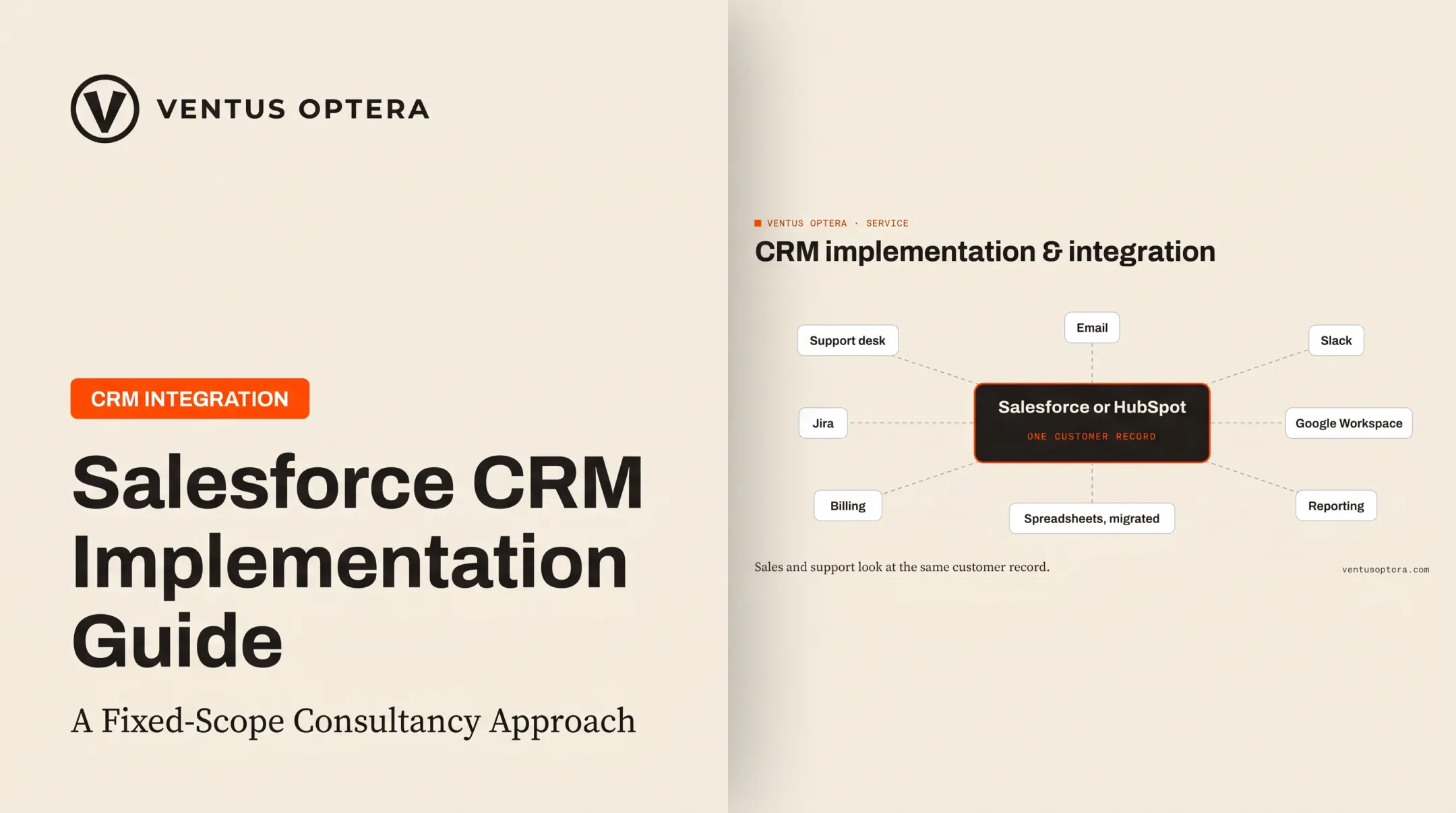
This is where a lot of Salesforce teams get stuck. Fragmented reporting usually isn't a chart problem—it's a data problem, with Salesforce, support, and billing describing the same customer differently.
Ventus Optera helps teams assess that gap and choose the fastest lasting fix: stronger use of existing Salesforce reporting, a CRM integration, or a dashboard built around one recurring operational question. There's no official Salesforce partnership; the work is operations-first, focused on where reporting actually breaks down.
Best Practices for Useful, Trusted Dashboards
A dashboard nobody opens twice is a wasted build. A few practices separate the ones that stick.
Prioritize Clarity Over Volume
A clean layout beats a page crammed with every chart type. Focus on:
- Plain-language labels
- Consistent metric definitions
- Visible date ranges
- Clear visual hierarchy
Build Governance In
Without clear ownership, stale dashboards pile up and nobody's sure which version is current. Assign owners for:
- Metric definitions
- Dashboard maintenance
- Permission reviews
Design Security Deliberately
CRM Analytics doesn't automatically lock down rows just because you shared an app. Salesforce's own security documentation notes that a user with dataset access can see all rows by default unless row-level security is configured separately.
Test with representative user accounts, especially for dashboards touching customer, revenue, or employee data.
Connect Every Chart to a Decision
If a visual doesn't help the intended audience investigate a problem or choose a next step, remove it.
Measure Whether It's Actually Used
User feedback, recurring review habits, and reduced manual reporting effort are better signals than assuming adoption because the dashboard exists.
Teams in this spot often face a bigger question than chart layout: improve the Salesforce reporting they already have, integrate another system, or build something fully custom. Ventus Optera's approach leans operations-first, helping figure out which of those three is actually worth doing before any building starts.
Frequently Asked Questions
What are CRM dashboards?
CRM dashboards are visual summaries of sales, service, marketing, or operational data. Basic Salesforce dashboards show report-based charts, while CRM Analytics adds interactive, blended-data exploration on top.
What is the difference between Salesforce dashboards and CRM Analytics dashboards?
Standard dashboards pull from individual reports and work well for straightforward, single-object questions. CRM Analytics handles blended external data, deeper interactivity, and recurring executive-level analysis.
What can you include in a Salesforce CRM Analytics dashboard?
You can include KPI cards, charts, tables, filters, calculated measures, trend lines, and record-level detail, all built from datasets prepared through recipes.
Can CRM Analytics dashboards combine data from outside Salesforce?
Yes. CRM Analytics can incorporate external systems like ERPs through connectors or APIs, once the integration, permissions, and refresh schedule are properly configured.
How do you make a CRM Analytics dashboard useful for business users?
Start with a specific business question and a defined audience. Use metric definitions everyone already trusts, and keep the design focused on the one action the dashboard should drive.
Are Salesforce CRM Analytics dashboards secure?
They can be, but security isn't automatic. Sharing an app doesn't restrict every row by default, so test permissions, row-level predicates, and audience-specific access against your organization's actual Salesforce configuration.